
Invite colleagues to your organization, set admins and members, and choose which stores each member can enter and at what level.
Invite members
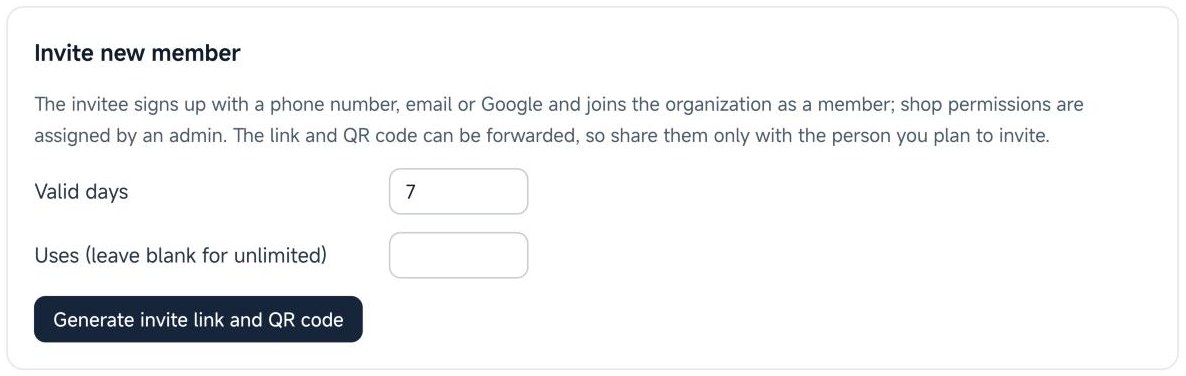
- Open Settings and, under Team, go to “Organization and invitations”.
- Set how long the invitation is valid (7, 30 or 365 days) and how many times it can be used, then generate the link and QR code.
- Send the link or QR code to the person you are inviting. The full link is shown only once, when it is created, so share it only with the people you mean to invite.
- The invitee registers with a phone number, an email address or Google and joins the organization as a member.
- Invitations you no longer need can be revoked in the invitation history.
Two roles
A team always keeps at least one active admin.
- Admin: can enter every store, manages members, store authorizations and shared points, and handles the plan.
- Member: can enter only the stores an admin has assigned.
Assign store permissions
Under “Shop permissions”, choose a level for each member, store by store. Changes apply once you save:
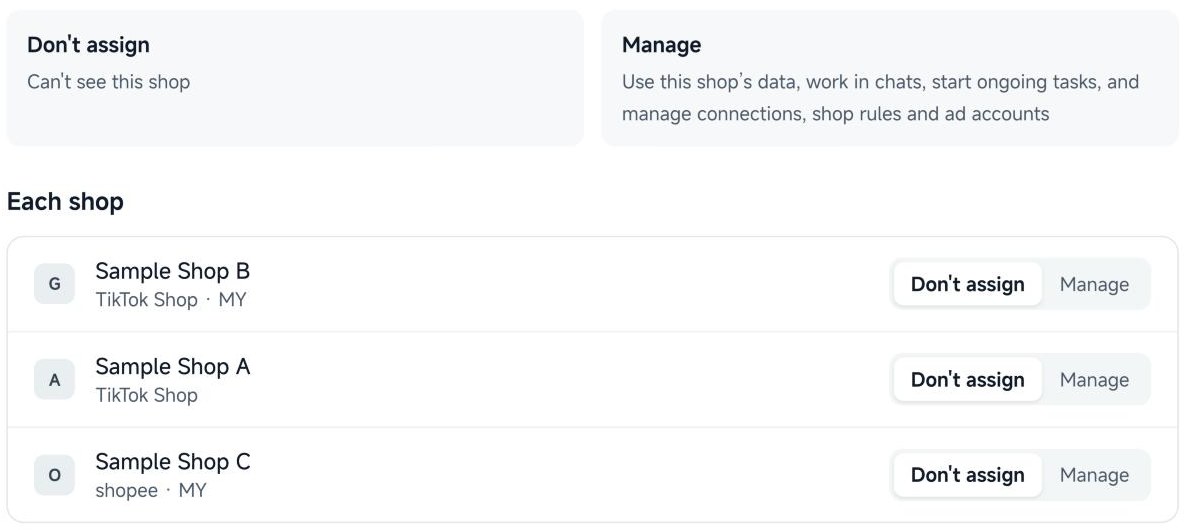
- Don't assign: the member cannot see the store.
- Manage: use the store's data, work in conversations, start ongoing tasks, and manage the store's connections, store rules and ad accounts.
Optional permissions
- Add stores: the member can connect new stores and automatically gets the Manage level for them. On by default, and an admin can turn it off per member.
- Market intelligence: the member can look up competitor and category rankings, using the team's query allowance. On by default, and an admin can turn it off per member.
Members can request access
A member can request a store they have not been assigned under “My shop permissions”. It takes effect as soon as an admin approves it under “Pending approval”.
Manage members
Admins can promote a member to admin or change an admin back to member, reset a member's password, sign a member out of all devices, and deactivate, restore or delete an account. Admins cannot deactivate or delete themselves.
Allocate points
Points belong to the organization and are shared by everyone by default. An admin can switch on percentage limits and give each member a share. Once limits are on, a member with no share cannot start new paid steps.