
Start Shopee's official authorization from “Connections & authorization” in Settings. Once the store owner approves on Shopee's page, Auroviagent can look up and analyze the store's product, order and settlement data.
Before you start
- Have the store owner's account ready. The owner has to sign in on Shopee's page and approve.
- Admins and members can both connect stores, and an admin can turn this off for an individual member.
Steps
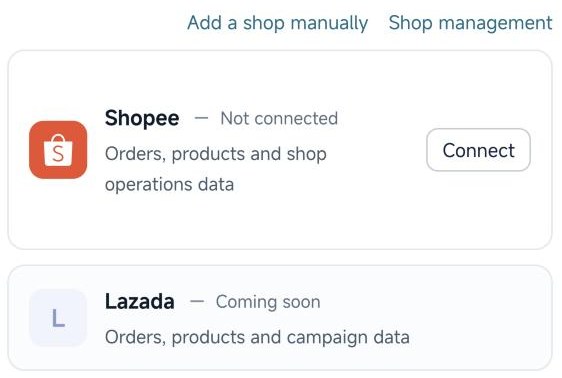
- Open Settings, go to “Connections & authorization”, and choose Shopee in the store platforms group.
- On Shopee's official page, sign in with the store owner's account and confirm the authorization.
- Return to Auroviagent. The store appears in your store list.
What you can ask about
- Store and products: store profile, products and stock.
- Orders and returns: orders, packages, return and refund records, and shipment tracking.
- Settlements: settlement and income records.
- Shop health and promotions: store performance metrics, plus discounts, vouchers and similar campaigns.
Ad analysis
If you use Qianyi ERP or Xinjian BI, connect it as well in the data and ERP group under “Connections & authorization” to ask about Shopee ad spend, ad sales, orders and ROAS, and rankings of campaigns and products. For stores connected through Xinjian, ongoing tasks can also suggest changing a budget, changing a ROAS target, or pausing or resuming. You approve on the confirmation card before anything runs.
Security
Authorization happens on Shopee's own page, and Auroviagent never receives your Shopee password. Credentials are stored encrypted, buyers' personal information is kept out of the results, and you can remove the authorization at any time.